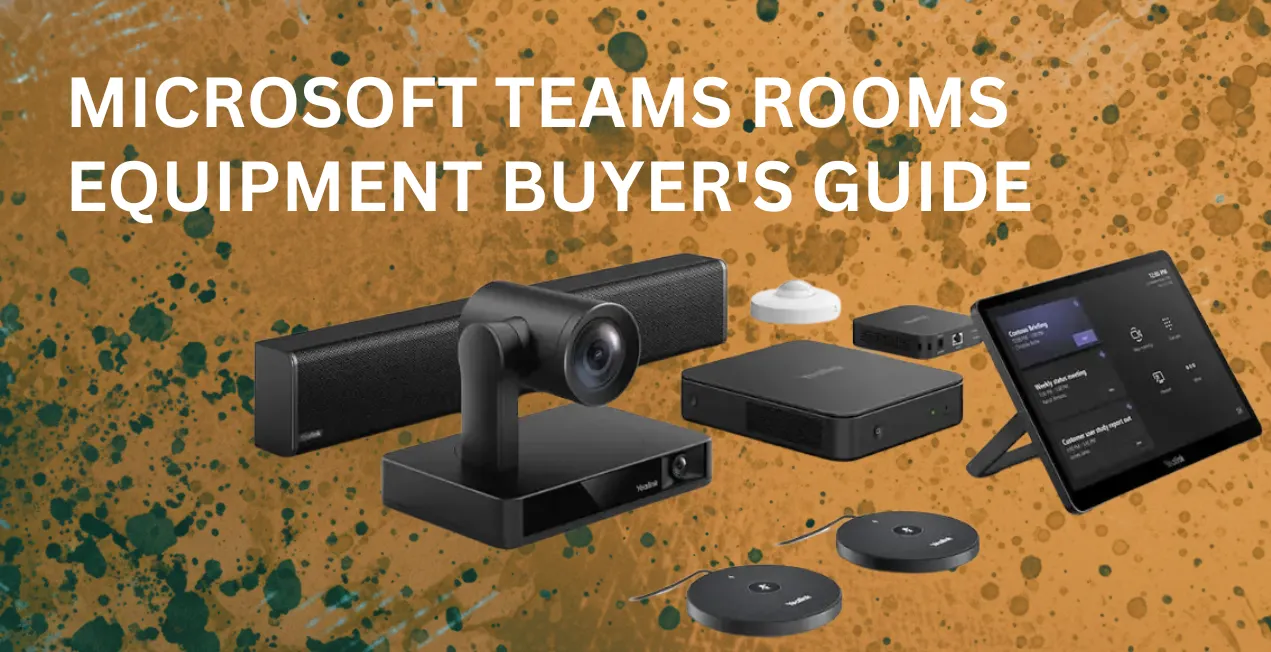
Microsoft Teams has become one of the world’s leading platforms for modern business communication and collaboration, combining high-quality video conferencing, chat, and collaboration tools in a single, unified space. Specifically designed for modern hybrid work culture, Microsoft Teams Rooms takes that experience even further by making video meetings effortless and inclusive for every participant, no matter where they’re located.
With perfect device integrations and advanced features, Teams Rooms authorizes organizations to transform ordinary meeting spaces into powerful collaboration hubs. From smart touch console devices and high-performance cameras to crystal-clear microphones and speakers, every component plays a role in creating the perfect Microsoft Teams Conference Room System.
In this Microsoft Teams Rooms Video Conferencing Equipment Buyer’s Guide, we’ll walk you through everything you need to know to build a setup that delivers a professional, high-quality meeting experience for everyone in the room, and beyond.
What is Microsoft Teams Rooms?
When it comes to video conferencing solutions for Microsoft Teams, one term you’ll often come across is Microsoft Teams Rooms (MTR) — but what exactly is it? You must be wondering.
Microsoft Teams is a powerful unified communications platform that connects people and businesses on chat, channels, calls, and video meetings within the Microsoft 365 ecosystem, alongside familiar tools like Word, Excel, and PowerPoint.
Microsoft Teams Rooms takes that collaboration experience a step further. It’s an advanced meeting room solution built on the Microsoft Teams platform, designed to run on certified hardware and applications for desktops and mobile devices. With intuitive features like one-touch join, content sharing, and meeting transfer between devices, Teams Rooms delivers a smooth and immersive video conferencing experience for all participants and users.
Whether it’s a small focus room, a mid-sized huddle space, or a large conference room, Microsoft Teams Rooms makes every meeting inclusive and productive, helping businesses create an effective hybrid work environment where everyone can connect and collaborate effortlessly.
What Does Microsoft Mean by “Hybrid”?
A hybrid workspace is designed to support both in-person and remote participants equally, so ensuring that every voice and idea is heard, no matter where people are joining from. In order to make this possible, Microsoft Teams Rooms Certified devices deliver continuous, smooth collaboration between on-site teams and remote members or clients, creating a truly connected meeting experience.
Just as a conference phone is essential for group audio calls, Microsoft Teams Rooms requires specialized technology for smooth video collaboration. This includes high-performance cameras, microphones, speakers, touch consoles, and displays, all working together to provide clear visuals and lifelike sound. However, not every device fits every space; the right solution depends on your setup and space as well. For example, a compact huddle room may only need a single camera bar, while a large conference or training room demands more advanced, wide-angle cameras and extended audio coverage, so it is created with space in mind.
That’s where the Microsoft Teams Rooms Certification Program comes in, ensuring every device meets Microsoft’s standards for performance, reliability, and compatibility.
What Does “Microsoft Teams Rooms Certified” Mean?
To ensure smooth integration and reliable performance, Microsoft offers a certification program that validates whether third-party devices or systems are fully compatible with the Microsoft Teams platform.
When a device is Microsoft Teams Rooms Certified, it means it has been thoroughly tested to guarantee easy compatibility, making third-party hardware feel like a native part of the Teams ecosystem. Beyond simple connectivity, this certification also ensures exceptional audio and video quality, enterprise-grade security, and consistent performance across every meeting.
In other words, Microsoft Teams Rooms Certified devices provide effortless setup, reliable operation, and a premium user experience, exactly what modern businesses need for productive collaboration.
Microsoft Teams Rooms on Windows vs. Microsoft Teams Rooms on Android
Microsoft certifies Teams Rooms devices for two primary platforms: Windows and Android. While both deliver a similar user experience and share most of the same features, there are some key differences.
As of January 2025, Teams Rooms on Windows supports SIP/H.323 dialing, enabling broader connectivity with legacy video conferencing systems, a feature not currently available on the Android version.
For the most recent updates and a complete feature comparison, visit Microsoft’s official support page on “Teams Rooms on Windows and Android Feature Comparison.”
Platform-Specific Certification
Every device is certified based on the platform it operates on, which means a product may be “Microsoft Teams Rooms on Windows Certified” but not necessarily certified for Android.
Because Android updates are managed separately outside Microsoft’s ecosystem, Teams Rooms on Android Certified devices have time-limited certifications tied to the Android version active at the time of approval. When manufacturers update a device’s Android version, they can resubmit it for recertification to maintain compliance and synchronization.
Before purchasing any Android-based Teams Rooms device, it’s wise to verify the current certification validity to ensure continued compatibility and support. You can find the latest details on Microsoft’s official support page, “Teams Rooms Certified Systems and Peripherals: Teams Rooms for Android.”
What About Microsoft Teams Rooms Licensing?
Licensing can be a little complex, and it changes over time, so it’s best to consult Microsoft directly for the latest updates. However, as of January 2025, here’s a simplified overview:
Each Microsoft Teams Rooms system requires its own license. A “system” could mean a Windows-based setup with a touch console, PTZ camera, and expansion microphones, or an Android video bar system equipped with a touch panel.
It’s important to note that Teams Rooms licenses differ from standard Microsoft Teams user licenses; a regular user license will not activate a Teams Rooms system.
Currently, there are two main license types:
- Microsoft Teams Rooms Basic – Free tier offering essential meeting features. Limited to 25 licenses per organization.
- Microsoft Teams Rooms Pro – Paid tier unlocking advanced functionalities such as dual display support, Microsoft Intune device management, and AI-powered operational insights. The Pro license allows unlimited deployments.
For a complete feature comparison, check the “Microsoft Teams Rooms Licenses” section on Microsoft’s official support site.
(Note: Licenses labeled “Standard” and “Premium” before September 2022 are now obsolete. All systems should now use the Basic or Pro model.)
AI is Coming to Microsoft Teams
Artificial Intelligence is playing an ever-growing role in collaboration tools, and Microsoft Teams is no exception. Features powered by Microsoft 365 Copilot AI are already being integrated into Teams Rooms to automate meeting summaries, enhance productivity, and deliver actionable insights.
To see how AI Meeting Summaries work inside Microsoft Teams Rooms, check out Microsoft’s article: “AI Meeting Summaries in Microsoft Teams Rooms Using Microsoft 365 Copilot.”
What Video Conferencing Equipment Do You Use with Microsoft Teams Rooms?
When setting up a Microsoft Teams Rooms system, there are several key devices you’ll need to build a reliable and professional meeting space. These include:
- Compute devices
- Touch consoles
- Room scheduling panels
- Video conferencing cameras
- Microphones
- Speakers
- Video bars
- Displays and touchscreen displays
- A/V switches
Each of these components plays an important role in creating a smooth video conferencing experience. In this guide, we’ll break down every category, outlining the essential features to look for when choosing Microsoft Teams conference room equipment.
At the end, we’ll also explore Microsoft Teams Rooms Kits, which conveniently bundle multiple devices together for easier deployment and consistent performance.
Compute Devices for Microsoft Teams
Every Microsoft Teams Room needs a reliable system to run the meeting software, known as a compute device. Depending on your setup, this could be a dedicated computer, an all-in-one video bar, or even an interactive display.
As of January 2025, Microsoft supports the installation of the Teams Rooms app only on certified Teams Rooms on Windows hardware. For full technical guidance, visit Microsoft’s support documentation titled “Build a Microsoft Teams Rooms Image.”
Most Teams Rooms on Windows systems use a dedicated mini-PC that comes preloaded with the Microsoft Teams Rooms app. These mini-PCs are engineered for performance, reliability, and instant readiness, meaning you can start a video call immediately without needing to plug in a laptop or reconfigure cables.
Certified Microsoft Teams mini-PCs include the essential HDMI and USB ports required to connect peripherals, displays, and touch consoles, ensuring smooth and secure operation for professional environments.
In contrast, Microsoft Teams Rooms on Android operates differently. The software runs directly on a video bar or interactive touchscreen display, eliminating the need for a separate computer. When using a video bar, you simply control the meeting through its connected touch console, providing a sleek, simplified user experience perfect for smaller or medium-sized conference spaces.
Touch Consoles for Microsoft Teams
A touch console is a dedicated control tablet used to manage Microsoft Teams meeting rooms. You might also hear it called a touch panel, touch controller, or touch display, but they all serve the same purpose, which is giving users an easy, intuitive way to operate their Teams Room setup.
Mounted or placed conveniently in the meeting room, the touch console provides a central control hub where users can schedule, start, and manage meetings with just a tap. The interface feels instantly familiar, offering quick access to essential features like camera control, participant management, and content sharing.
Some advanced touch consoles also support digital whiteboarding, enabling interactive collaboration right from the screen. Many models come equipped with motion sensors that automatically wake the system when someone enters the room, so meetings can begin faster and more smoothly.
Pro tip: Before choosing a touch console, always check peripheral compatibility. Most consoles rely on a manufacturer-specific app to control connected devices such as cameras or microphones. For instance, the Yealink MTouch Plus uses the Yealink RoomConnect app, which is optimized for Yealink cameras and accessories only.
Ensuring that your touch console and peripherals are fully compatible will save you time, frustration, and performance issues later. To learn more about how touch consoles enhance collaboration, check out our blog, “What Is a Touch Console for Video Conferencing?”
Room Scheduling Panels for Microsoft Teams
Closely related to the touch console is the room scheduling panel, which is basically a wall-mounted tablet placed outside your meeting room, on a mullion, or near a glass wall. As its name suggests, it helps teams book and manage meeting rooms efficiently through Microsoft Teams.
Room scheduling panels simplify coordination by displaying a room’s real-time calendar and availability status. This transparency ensures everyone knows when a space is free or reserved, helping avoid double bookings and scheduling confusion.
Many Microsoft Teams scheduling panels also include LED indicators that visually signal a room’s status, for instance, green when available and red when occupied. A great example is the Logitech Tap Scheduler, which uses built-in LED bars to make status checks quick and easy from a distance.
In simpler words, room scheduling panels enhance productivity, streamline the booking process, and make your office space more connected and efficient, a perfect complement to your Microsoft Teams Rooms setup.
Video Conferencing Cameras for Microsoft Teams
When selecting a video conferencing camera for your Microsoft Teams Rooms, the most important factor is room size, specifically, how close or far participants will be from the camera.
In small meeting spaces or huddle rooms, participants sit closer to the camera, so a wide-angle lens is ideal for capturing everyone comfortably within the frame. For larger rooms, a PTZ (pan-tilt-zoom) camera such as the Yealink UVC84 provides the flexibility to zoom in for individual shots or zoom out for group views without losing clarity.
If you’re working in extra-large conference or training spaces, you may even consider a multi-camera setup to ensure full coverage and smoother functionality.
Modern Microsoft Teams cameras often come equipped with AI-driven features like auto-framing, speaker tracking, and presenter tracking, which create a dynamic, lifelike experience that feels as if a director is switching between camera angles in real time.
Video Conferencing Microphones for Microsoft Teams
When it comes to audio capture, there are three main options for Microsoft Teams meeting rooms: microphones, speakerphones, and video bars. The goal is one: to make sure everyone in the room is heard clearly and equally.
Let’s start with microphones. In a traditional conference room setup with a long central table, you’ll often need multiple wired microphones, like the Yealink VCM38, placed at intervals for consistent sound pickup. For more flexible spaces where people may move around, a wireless microphone such as the Yealink VCM36-W is an excellent choice.
If you prefer a clean, clutter-free workspace, ceiling-mounted microphones like the Yealink VCM35 are perfect for discreet yet powerful audio performance.
Beyond Yealink, there are other Microsoft Teams-compatible microphones from brands like Shure, Biamp, and Q-SYS, though those are beyond the scope of this guide.
For small teams or ad-hoc collaboration, a portable speakerphone (sometimes called a speaker puck) can be a smart alternative. It combines both a microphone and a speaker into a single portable device, typically connected via USB or Bluetooth. Speakerphones are also perfect for remote work or trade show setups, offering quick, plug-and-play convenience.
Finally, some video bars include built-in microphones, providing an all-in-one audio and video solution. We’ll explore those in detail in the next section.
Video Conferencing Speakers for Microsoft Teams
High-quality audio output is just as important as capturing sound. When choosing speakers for Microsoft Teams Rooms, you have several options depending on your space.
For medium to large rooms, purpose-built conferencing speakers like the Yealink MSpeaker II offer superior voice clarity with a soundbar-style design that’s optimized for speech rather than music.
For smaller meeting areas or focus rooms, speakerphones can double as both microphones and speakers, providing excellent sound while minimizing clutter.
Video bars are another great option, acting as soundbars that deliver professional-grade audio while also housing built-in microphones and cameras.
On the other end, remote participants working from home or shared workspaces should use a professional headset for maximum clarity and comfort. For personalized recommendations, explore our Headsets Buyer’s Guide. — a detailed resource on choosing the right Microsoft Teams-compatible headsets for your setup.
Video Bars for Microsoft Teams
A video bar designed for Microsoft Teams brings together everything you need for a professional meeting room that includes a camera, a microphone, a speaker, and a computing unit, all in one sleek device.
The biggest advantage of a video bar is simplicity. It eliminates the need for multiple separate devices and cables. Since it has a built-in compute module, the video bar runs Microsoft Teams Rooms software natively, which means you won’t need a separate dedicated PC. You can manage meetings effortlessly through a connected touch console, making it an ideal all-in-one solution for small to medium conference spaces, including huddle rooms.
Some video bars are even powerful enough to handle large meeting rooms. For example, the Poly Studio X70 is designed to deliver premium performance in wide, open collaboration areas.
When choosing a Microsoft Teams video conferencing bar, here are three key factors to look for:
- Microphone Range:
Ensure the microphones can capture voices clearly across the room. For example, the Poly Studio X52 features advanced MEMS and second-order microphones that extend voice pickup up to 20 feet, making it suitable for medium-sized rooms.
- Camera Resolution
Opt for video bars with at least 4K Ultra HD capability for sharp visuals. Higher-resolution sensors (like the X52’s 20MP sensor) enhance image quality and digital zoom performance, keeping participants in perfect focus.
- Intelligent Features
Look for AI-powered framing and tracking tools. Modern bars include features such as Group Framing, Speaker Tracking, or Presenter Mode to create a dynamic, studio-like experience. Noise reduction technologies like NoiseBlockAI and Acoustic Fence also help maintain crystal-clear communication by minimizing distractions.
All Microsoft Teams Rooms video bars operate on the Android platform, offering a clean, intuitive experience for meeting room control.
Displays for Microsoft Teams
Microsoft Teams Rooms supports both single and dual-display setups, giving you flexibility in how you design your meeting spaces. Choosing the right display ensures everyone in the room can clearly see shared content and participants’ faces.
When shopping for a display, consider:
- Room Size and Viewing Distance:
Make sure the display is large enough for people at the back of the room to comfortably view presentations, spreadsheets, or video grids.
- Connectivity:
Your display should have at least one HDMI input for easy connection to Teams Room systems.
- Mounting Options:
Decide whether you’ll mount the screen on the wall, place it on a stand, or use a mobile cart. Most modern displays follow the VESA standard, ensuring compatibility with a wide range of mounts.
A 55-inch TV might look large up close, but in a bigger meeting room, it may not be sufficient. For the best experience, it’s usually smart to choose one size larger than you initially planned; that extra screen real estate can make a big difference in engagement and visibility.
Touchscreen Displays for Microsoft Teams
Touch-enabled displays, also known as interactive whiteboards, take collaboration to the next level. They allow users to brainstorm, annotate, and edit content directly on screen, perfect for dynamic team discussions.
A great example is the Yealink MeetingBoard, available in 65-inch and 86-inch 4K Ultra HD versions. It combines a high-resolution display, an integrated 4K camera, and touch capability for an all-in-one collaboration experience. You can use your fingers or a stylus to interact with content, making meetings more engaging and productive.
The MeetingBoard natively supports Microsoft Teams Rooms on Android, but with the Yealink MCore-OPS module, you can also run it on Teams Rooms for Windows, offering flexibility for various environments.
If your workspace could benefit from hands-on, interactive collaboration, investing in a Microsoft Teams-certified touchscreen display like the Yealink MeetingBoard is an excellent choice.
A/V Switches for Microsoft Teams
The last essential component to consider for a Microsoft Teams Room setup is the A/V switch. While a network switch connects devices to your IP network, an A/V switch (audio/video switch) connects and manages your audio and video peripherals, optimizing signal flow and offloading the processing tasks from the main meeting room computer.
In easy terms, it acts as the command center for your conference room’s cameras, microphones, and speakers, ensuring smooth communication between all devices.
A great example is the Yealink AVHub, a powerful audio and video processor designed to manage complex meeting room environments. With AVHub, you can connect and control multiple cameras, microphones, and speakers simultaneously, maintaining high performance and stability across the system.
This makes it perfect for large and extra-large meeting spaces that require a multi-camera or multi-microphone setup for comprehensive coverage and superior sound pickup.
Another impressive feature of Yealink AVHub is its system flexibility, it allows you to combine two smaller Teams Rooms into one large system or split a large system into smaller setups when needed. This adaptability makes it an excellent choice for enterprise environments with diverse meeting needs.
Microsoft Teams Rooms Kits
To simplify the setup of a Microsoft Teams Room, Microsoft partners with leading business technology vendors like Grandstream, Poly, and Yealink to offer certified Teams Rooms Kits. These kits bundle the right combination of devices to fit common meeting scenarios and room sizes.
Kits are designed based on room size, which generally connects with group size:
- Extra-Large Rooms:
For example, the Yealink MVC $90-C5-007 kit includes a large-screen touch console, two cameras, an A/V switch, wireless content sharing dongles, a mini-PC, and more, everything needed for high-capacity collaboration.
- Focus Rooms / Small Spaces:
The Poly Studio Focus Room Kit for Microsoft Teams Rooms features a video bar and touch console, providing all-in-one simplicity for small meetings.
- Base Kits:
Options like the Yealink MCoreKit-C4-MS include just the mini-PC and touch console, allowing you to reuse existing peripherals while updating core components.
Pro tip: Always double-check peripheral compatibility, especially for touch consoles. For example, Yealink touch consoles use the Yealink RoomConnect app, which only works with select Yealink cameras and accessories. Ensuring compatibility before purchase avoids setup headaches and ensures smooth operation.
If you prefer a custom solution, you can also build your own Microsoft Teams Rooms Kit. Our experts provide step-by-step guidance in the blog: “How to Build Your Own Yealink Microsoft Teams Rooms Kit.”
For further assistance or questions about Microsoft Teams Rooms Kits, feel free to contact us:
📞 (888) 996-9609
📧 info@spogmey.com