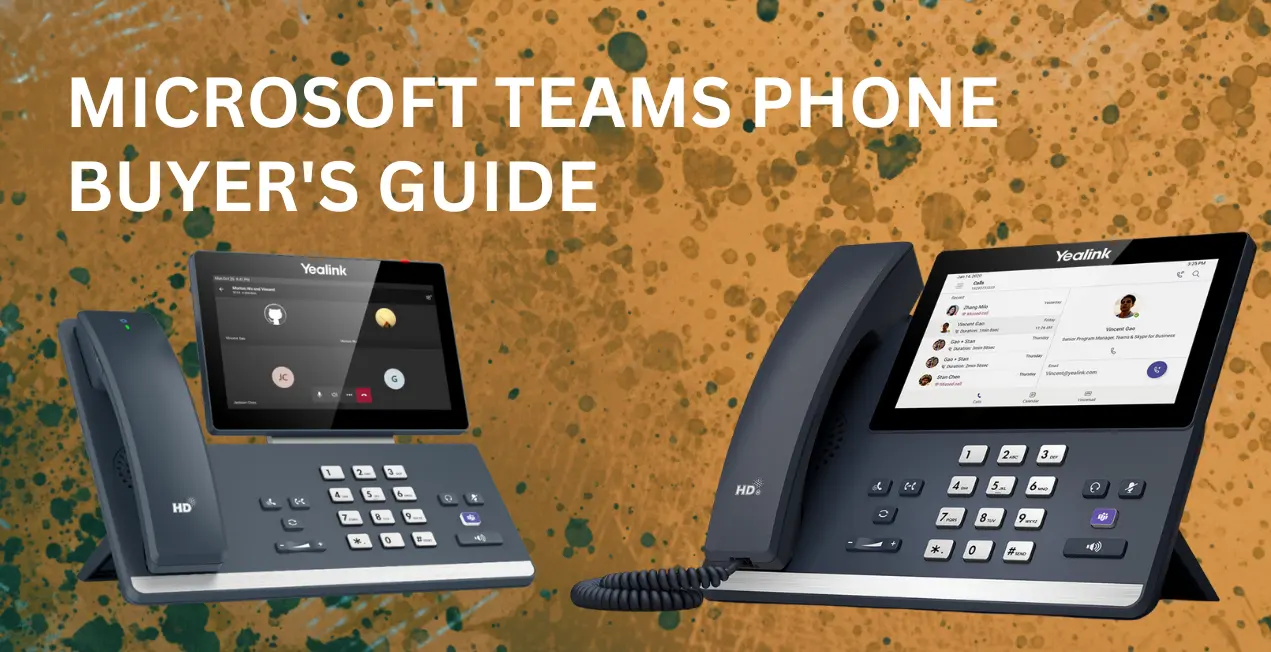
Microsoft Teams has evolved from a simple collaboration tool into a full-fledged telephony and unified communications platform. With seamless integration into Microsoft 365 and Office 365, the Microsoft Teams Phone system is the ideal choice for US organizations of all scales—from agile SMBs to enterprise teams—delivering reliable voice calling, meetings, and productivity in hybrid environments.
While software drives flexibility, top-tier hardware is key for professional audio and video quality. Certified desk phones, conference systems, and accessories ensure flawless communication, whether remote or in-office.
💼 Ready to optimize your setup? Explore Spogmey’s comprehensive range of certified Teams-compatible hardware, featuring premium brands like Yealink and Owl Labs for unmatched clarity, comfort, and connectivity on every US call.
In this Microsoft Teams Phone Buyer’s Guide, we dive into desk phones, conference solutions, and accessories that elevate the Teams app on desktops and mobiles—equipping you with insights for your US operations.
Before diving into the device list, we’ll first walk you through two crucial considerations when shopping for Microsoft Teams phone equipment:
- Microsoft Teams Phone licensing
- The Microsoft Teams Devices Certification Program
What Is Teams Phone?
“Teams Phone” is Microsoft’s official name for its cloud-based call control service within Microsoft Teams. When we refer to Teams Phone, we’re talking about the service, not the physical hardware itself.
To set up a Teams Phone system, you’ll need to plan for both internal and external calls — think of it as two key communication channels your organization will rely on every day.
Internal calls are those made between members of your own organization. These calls stay entirely within the Microsoft Teams ecosystem, meaning there are no long-distance or international charges, even if your teams are located across the world.
External calls, on the other hand, connect you to contacts outside your organization and are transmitted through the PSTN (Public Switched Telephone Network) or cellular networks.
When setting up external communication, Microsoft offers four flexible options for your business needs:
- Calling Plans
- Direct Routing
- Operator Connect
- Teams Phone Mobile
💡 Pro Tip: Choosing the right setup depends on your organization’s size, call volume, and existing infrastructure. If you’re upgrading or deploying a new Teams Phone system,
SPOGMEY’s certified Microsoft Teams hardware lineup ensures every call, whether it is internal or external, is powered by professional-grade clarity and reliability. Explore our Teams-ready phones and devices today to get started with flawless communication.
Teams Phone for Internal Calls
If your organization plans to use Teams Phone precisely for internal communication, you’ll need a Microsoft Teams Phone license. This license provides full cloud-based PBX functionality directly within Microsoft Teams, covering desk phones, conference phones, and softphones.
At present, you have two licensing options:
Individual Teams Phone License:
You can purchase a Teams Phone license per user, which currently costs $8 per user per month (with an annual commitment). Always check Microsoft’s site for ongoing deals or promotional discounts.
Microsoft 365 E5 Subscription:
This subscription is currently $54.75 per user per month (annual plan).
Each plan has its own benefits. For small to mid-sized businesses (SMBs) with limited users, individual licenses might be the more cost-effective option. For larger enterprises, an E5 subscription not only unlocks Teams Phone capabilities but also provides enhanced security, analytics, and advanced Microsoft 365 features.
💡 Looking to get the most out of your Microsoft Teams environment?
SPOGMEY offers a wide range of Teams-certified desk phones and conference devices designed for unmatched voice clarity and effortless compatibility. Explore our lineup to empower your team communication today.
Teams Phone for External Calls
When it comes to external calling through Microsoft Teams Phone, things get more complex. There are three primary options, plus an additional one for mobile integration. The main difference between these lies in who manages your phone system — Microsoft, a certified telecom provider, or your own IT team.
- Calling Plans:
Microsoft manages all your calls in the cloud, eliminating the need for any on-premises equipment.
- Operator Connect:
A certified service provider manages your external calls, again requiring no on-premises infrastructure.
- Direct Routing:
Your organization takes control of the system by managing calls on-site through a certified session border controller (SBC) that connects directly to your chosen voice carrier.
You can even build a hybrid setup, combining multiple methods to meet specific business needs. While pricing can vary greatly depending on your setup, what matters most is understanding which option best fits your organization’s scale, infrastructure, and communication goals.
✨ Pro Tip: Whether you go with Microsoft-managed or self-managed routing, make sure your Teams Phones are certified and optimized for the best call performance.
SPOGMEY’s Teams-ready hardware is built for reliability and flawless PSTN integration. Explore our options for Direct Routing and Operator Connect setups to streamline your business communication.
Calling Plans
Using a Microsoft Calling Plan offers one clear benefit, i.e, simplicity. With this setup, Microsoft acts as your complete PBX provider, managing both internal and external calls. You can easily assign numbers, manage users, and monitor call activity through the Teams Admin Center.
Several Calling Plan options are available, depending on your business requirements, such as international call access, minute bundles, pay-as-you-go options, or annual subscriptions. Always review the latest Microsoft promotions; they often include significant savings on call minutes or bundled plans.
Key features of Microsoft Calling Plans include:
- Voicemail
- Caller ID
- Auto-attendant and call queues
- Inbound call routing and blocking
- Call parking and retrieval
- Shared line appearances
- Music on Hold
Because most of these services are cloud-managed, they’re accessible anywhere you have an internet connection, especially ideal for remote or hybrid teams. For a detailed list, you can explore “Teams Phone features” on Microsoft Learn.
However, there are a few potential downsides to consider. With Microsoft PSTN Calling Plans, you’re limited to Microsoft as your sole service provider. This lack of flexibility may lead to higher costs, especially for companies that rely heavily on international calling. In such cases, opting for a third-party provider or a Direct Routing solution might offer more control and better rates.
Moreover, while Microsoft’s Calling Plan includes a wide range of features, it might not cover highly specific telephony requirements your organization has. It’s always wise to evaluate whether Teams PBX features align with your unique business workflow before committing.
💬 Need help finding the perfect Teams-compatible phone system?
SPOGMEY provides top-rated Microsoft Teams desk phones and conference devices that ensure smooth integration, clear audio, and easy deployment — get yours today and simplify communication across your organization.
Operator Connect
Operator Connect allows certified telecom providers to integrate directly with the Microsoft Teams Phone system, letting them manage your external calls using their own cloud-based infrastructure. It delivers the same simplicity as Microsoft’s Calling Plans, but with more flexibility and choice when selecting your service provider.
You don’t need to manage any on-premises telephony hardware, and you can still easily assign phone numbers, monitor usage, and manage settings through the Teams Admin Center.
Since there are multiple certified operators available under the Microsoft Operator Connect Program, you may find more competitive pricing or specialized service features that Microsoft doesn’t offer directly. If your business already works with a trusted telecom provider that participates in the Operator Connect Program, staying with them may offer continuity and convenience.
However, some businesses might not want to spend time comparing multiple third-party providers or relying on them for call management. In those cases, sticking with a Microsoft Calling Plan may be simpler.
💼 Enhance your Teams experience effortlessly! Pair your Operator Connect setup with SPOGMEY’s Teams-certified phones and accessories to ensure superior audio performance and smooth compatibility across your organization. Shop the latest Teams hardware at SPOGMEY.com to boost your collaboration game today.
Direct Routing
With Direct Routing, your organization takes full control of its phone system. This method connects your on-premises VoIP setup to the Microsoft Teams Phone service using a certified Session Border Controller (SBC) — a specialized device that acts as a translator between Microsoft Teams calls and your existing telephony network.
To explore approved devices, you can visit Microsoft’s official page for “Session Border Controllers Certified for Direct Routing” on Microsoft Learn.
Advantages of Direct Routing
- Wider Provider Access: You can connect to nearly any voice carrier for maximum flexibility.
- Customization: Enables custom call routing, hybrid integration, and support for analog endpoints, offering a highly adaptable telephony environment.
- Potential Cost Savings: Because you own your equipment, you can reduce ongoing subscription expenses over time.
Disadvantages
The trade-off is complexity. Direct Routing demands in-depth technical setup and maintenance, making it more suitable for organizations with dedicated IT staff or advanced infrastructure. To give context, while Calling Plan and Operator Connect setups can be configured using a single Microsoft Teams Support page, Direct Routing has over twenty detailed setup pages, plus you’ll need to operate and maintain your own SBC and PBX systems.
💡 Looking to deploy Direct Routing without the hassle?
SPOGMEY’s expert-recommended Teams hardware lineup works perfectly with certified SBCs, giving you enterprise-grade call quality and effortless integration. Explore our Teams-ready devices today to build a powerful, flexible, and future-proof telephony setup.
Teams Phone Mobile
Sitting slightly apart from the other options is Teams Phone Mobile, a mobile-first extension of the Microsoft Teams Phone system. This service allows you to link a smartphone’s SIM-enabled phone number directly to a user’s Microsoft Teams account, so one number can function across both cellular and Teams-based communications.
Essentially, it gives you the flexibility to use your business number for both standard mobile calls and Teams VoIP calls, all from the same device. This setup is ideal for businesses whose mobile and enterprise communication systems are already integrated.
To enable this functionality, your provider must be part of the Microsoft Teams Phone Mobile Program, as calls are managed entirely by the certified telecom provider.
📱 Empower your hybrid teams on the move! Combine your Teams Phone Mobile setup with SPOGMEY’s premium Handset accessories and Teams-compatible headsets to stay connected anywhere, anytime. Discover our top-rated mobility solutions at Spogmey.shop and keep your workforce communication-ready at all times.
Microsoft Teams Devices Certification Program
Choosing the Right Phone for Microsoft Teams
When shopping for a phone that works with Microsoft Teams, the most important thing to look for is the “Microsoft Teams Certified” badge. But what does Teams Certified actually mean?
Simply put, a Teams Certified phone has gone through independent lab testing to make sure it meets Microsoft’s strict standards for performance, security, and user experience. These devices are optimized for perfect integration with Teams, ensuring crystal-clear audio and effortless setup for every user.
Here’s what a Microsoft Teams Certified Phone guarantees:
- Simple, secure sign-in: You can log in using your Microsoft credentials, just like you do on your computer or smartphone.
- Better Together experience: Lock or unlock your Teams phone automatically when you do the same on your connected Windows PC.
- Contacts, call history, and voicemail sync: All your data instantly appears once you sign in — no manual setup required.
- Hot desking support: Perfect for hybrid or shift-based teams. Multiple users can share the same phone while still keeping access to their personal Teams profiles.
- Accessibility features: Options like high-contrast text make Teams phones inclusive and easy to use for everyone.
Certified phones are tied to specific Android OS versions, meaning they’re periodically recertified to maintain compliance. Microsoft typically supports each certified device for up to two years after its certification period ends, ensuring you stay secure and up to date with the latest firmware.
Types of Microsoft Teams Certified Phones
Microsoft offers several types of certified devices depending on your workspace and communication style. Let’s explore the main categories below.
🔹 Microsoft Teams Certified Desk Phones
These are the most common and business-friendly options available from trusted brands like Yealink, Grandstream, and Poly. Since they’re officially certified, you never have to worry about compatibility or setup hassles.
A Teams Certified Desk Phone comes with a dedicated Teams button for quick access to meetings, notifications, and contacts.
When choosing one, think about your daily workflow and preferences:
- Screen size: Larger displays are ideal for navigating Teams features.
- Interface type: Prefer a touchscreen (like a smartphone) or physical buttons for quick dialing?
- Headset support: Most Yealink phones support Bluetooth and USB headsets, giving you the flexibility to use professional wireless models.
- Sidecar or expansion module: Ideal for receptionists or executives who need additional programmable keys for extensions and shortcuts.
📞 Popular Pick By Our Customers: The Yealink MP52 is a top choice for common area setups like lobbies and reception desks. You can easily register it using a Microsoft Teams Shared Device license through the Teams admin center.
For remote or home office professionals, the Yealink MP56 is a great fit in offering Wi-Fi connectivity, rich display options, and intuitive touch controls, so you can work from anywhere without messy Ethernet cables.
🔹 Microsoft Teams Certified USB Phones
If you prefer a plug-and-play solution, a USB phone like the Yealink MP50 is perfect. It connects directly to your PC or laptop via USB and acts as your primary Teams audio device.
The best part? It’s universally compatible, no drivers, no complex setup, just plug it in and you’re ready to take calls in seconds.
🔹 Microsoft Teams Certified Conference Phones
For meeting rooms and collaboration spaces, a conference phone ensures everyone in the room is heard clearly. Models like the Yealink CP965 are purpose-built for Teams, featuring advanced microphone arrays, noise suppression, and wide voice pickup coverage.
When selecting one, consider:
- The room size or the number of participants you usually have.
- The pickup range (often measured in meters or seating capacity).
- Whether it supports wired or wireless expansion mics for larger spaces.
These devices deliver high-end acoustic performance and ensure that every meeting feels professional, whether in-person or hybrid.
🔹 Microsoft Teams Compatible Gateways
If your organization still uses analog phones or older SIP systems, don’t worry, you can integrate them with Microsoft Teams using compatible SIP Gateways or ATAs (Analog Telephone Adapters).
These gateways act as translators between your existing analog infrastructure and the Microsoft Teams environment. Essentially, they allow legacy phones to work seamlessly within a modern cloud-based setup.
For the latest list of supported models, Microsoft provides an updated compatibility guide under “Plan for SIP Gateway” on the Microsoft Learn portal.
🛒 Ready to Equip Your Team?
At Spoglink, we carry a full range of Microsoft Teams Certified devices, including the Yealink MP52, MP56, MP50, and CP965. Whether you’re setting up for the home office, a busy reception desk, or a large conference room, you’ll find the right Teams phone to enhance productivity and keep your communication unified.
➡️ Explore our full Yealink Teams lineup today and bring stress-free collaboration to your workspace.
Microsoft Teams Compatible Paging Equipment
With Microsoft Teams SIP Gateway, you can take your communication system beyond voice calls by integrating paging equipment directly into your Teams environment. This feature allows businesses to broadcast announcements, play background music, or send alerts, all without leaving the Microsoft Teams ecosystem.
By connecting IP paging speakers or using a suitable adapter from Spogmey’s range of adaptors, you can even link analog paging systems to Teams, giving you flexible control over your public address network.
💡 For step-by-step integration details, see our in-depth blog: “Using Algo IP Endpoints with Microsoft Teams.”
Using the Microsoft Teams Softphone App
Many professionals are shifting away from physical desk phones in their current work setups. Instead, they’re embracing softphones, short for “software phones”, which allow you to make and receive calls directly from your computer using the Microsoft Teams desktop app.
With a softphone setup, your Teams app becomes your communication hub, where you can call, chat, and collaborate perfectly. However, to ensure clear audio and comfort, we recommend pairing your softphone with an external Microsoft Teams Certified headset or speakerphone rather than relying on your computer’s built-in mic and speakers.
Headsets for Microsoft Teams
A headset combines headphones and a microphone into one professional device, ideal for hybrid workers, call centers, and anyone who needs hands-free communication.
So, what makes a Microsoft Teams Certified Headset special?
✅ Instant recognition – It connects automatically and is recognized by Teams without setup hassle.
✅ Dedicated Teams button – A quick-access button launches Teams and lets you manage calls effortlessly.
✅ Top-tier audio – Microsoft’s certification guarantees premium voice quality for both you and the caller.
For extra-noisy workplaces, look for Microsoft Teams Open Office Headsets, these models provide advanced noise cancellation that filters background sounds, ensuring your voice stays clear even in busy environments.
How to Choose the Right Headset
Before shopping, start with two key decisions:
- Mono vs. Stereo:
- Mono headsets (single-ear) let you stay aware of your surroundings while taking calls.
- Stereo headsets (dual-ear) offer better focus, richer sound, and stronger noise isolation.
- Wired vs. Wireless:
- Wired headsets are more affordable and dependable for all-day use.
- Wireless headsets (like the Yealink BH76) give you the freedom to move while you work.
Next, make sure your headset connects properly with your device:
- USB-A: The classic rectangular connector, common in most PCs.
- USB-C: The modern, reversible connector found in newer laptops.
- Bluetooth: Perfect for mobility — though for desktops, you may need a USB adapter (many Yealink Bluetooth headsets include one).
🎧 Want to explore top-rated business headsets?
Check out our Headsets Buyer’s Guide for an in-depth breakdown of the best Microsoft Teams Certified models available at Spoglink.
Speakerphones for Microsoft Teams
For group calls or team meetings, speakerphones, often called “speaker pucks” due to their compact shape, are the go-to solution. They combine powerful speakers and multi-directional microphones to capture voices clearly from all sides of a room.
Speakerphones are perfect for conference calls, team discussions, or hybrid meetings. When choosing one, look at:
- Pickup range (distance or room size supported)
- Connection type (USB or Bluetooth — or both)
- Compatibility with Microsoft Teams
A Microsoft Teams Certified Speakerphone automatically integrates with the Teams platform and includes a dedicated Teams button for easy call control. Models like Yealink CP900 or Yealink CP700 are popular options that deliver premium sound and plug-and-play convenience.
Whether you connect via USB-A, USB-C, or Bluetooth, Teams Certified speakerphones ensure stable audio performance and intuitive controls for every meeting setup.
5 Benefits of Using a VoIP Phone with Microsoft Teams
Even with all these modern options, many professionals still prefer the tactile reliability of a physical VoIP phone and for good reason. Here are the top five advantages:
- Dedicated, familiar device:
Having a Teams phone on your desk provides instant access to calls without juggling apps or headsets.
- Superior audio quality:
Certified VoIP phones, like the Yealink MP56, deliver crystal-clear sound that far outperforms a laptop mic.
- Reliable performance:
Microsoft Teams Certified phones meet Microsoft’s strict hardware standards, ensuring dependable call quality and stability.
- Flawless integration:
Simply sign into your Teams account — your contacts, voicemail, and call history appear instantly.
- Hot desking for hybrid teams:
Shared workspaces become easier with Teams’ hot desking feature, allowing multiple employees to sign in and out securely on the same device, no need for one phone per user.
🛒 Upgrade Your Microsoft Teams Setup with Spoglink
Whether you’re equipping a busy office, hybrid workspace, or remote setup, Spoglink offers a complete selection of Microsoft Teams Certified devices — including Yealink headsets, USB speakerphones, and desk phones that ensure effortless integration, professional-grade sound, and modern mobility.
➡️ Shop Microsoft Teams Certified devices now at Spoglink.com and transform your workspace into a smooth communication hub.