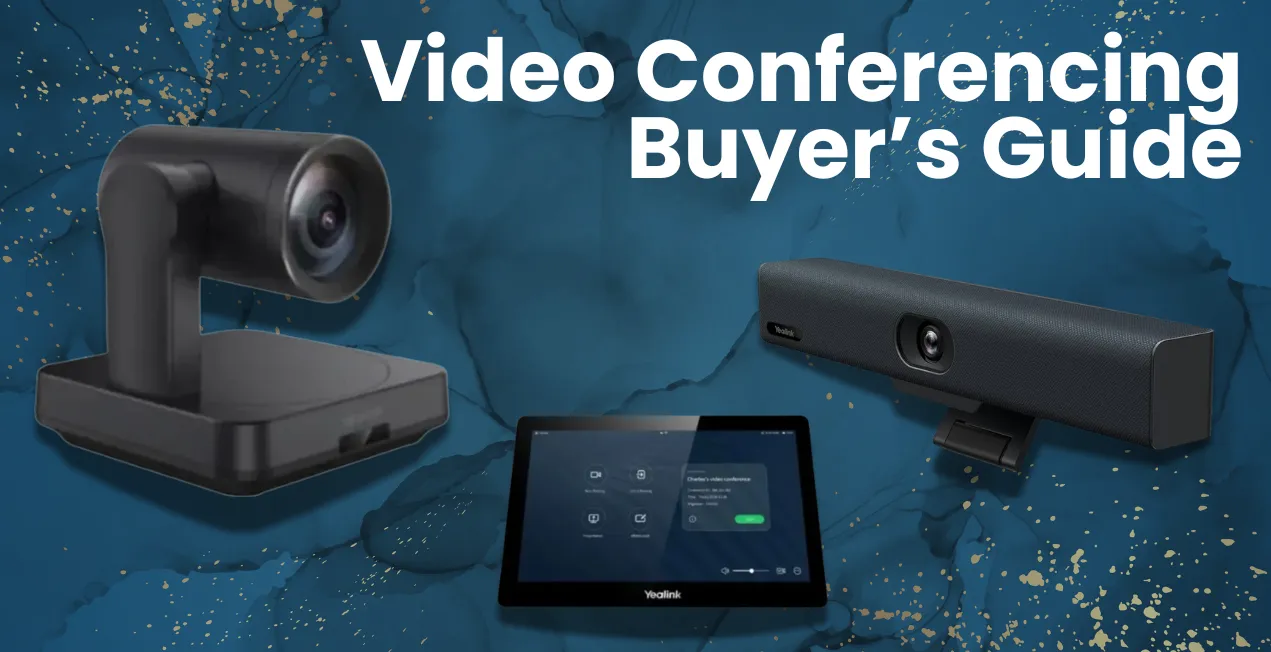
Why Video Conferencing Is the Future of Meetings
Communication is the baseline of almost everything, whether it’s a hybrid work environment or not. Whether you are in charge of running a remote team, hosting a client’s project presentation, or conducting a global training session, a suitable video conferencing setup can make or break your collaboration experience. This is where Spogmey’s video conferencing buyer’s guide comes to help you; it’s your ultimate resource to understand, compare, and choose the perfect system for flawless, face-to-face connections.
A video bar is a hero behind curtains in modern conferencing, combining a high-definition camera, powerful speakers, and smart microphones into a single elegant unit. It removes the mess of multiple devices and delivers an all-in-one solution that’s easy to install, manage, and scale for different room sizes.
Why Businesses Are Investing in Video Bars
Over the last couple of years, businesses across the USA have moved from traditional conference phones to unified collaboration systems that assist hybrid communication systems. The number doesn’t lie:
- 92% of global companies now consider video conferencing essential for team productivity.
- Video collaboration tools have improved employee engagement by up to 70%.
- All-in-one video bars have become the preferred choice for 60% of IT managers due to easy deployment and low maintenance.
The increased demand comes from a simple need: clarity, consistency, and convenience. Rather than managing cameras, microphones, and speakers separately, companies want more plug-and-play solutions that just work.
💡 Pro Tip:
Looking for an all-in-one device that integrates perfectly with Zoom or Microsoft Teams? Explore Spogmey’s Video Conferencing Systems for flexible options suited for every room size.
What You’ll Learn in This Guide
This Video Conferencing Buyer’s Guide is not limited to the technical part only; it’s designed and written for everyone, starting from first-time buyers to IT professionals. By the end, you will understand:
- The different types of video bars and conferencing systems
- How hard codecs and soft codecs impact performance
- The essential devices and accessories that complete your setup
- Practical tips for room layout, lighting, and display positioning
- How to choose the right video bar based on your meeting space and budget
With unlimited options on the market, starting from Yealink and OWL Labs to Logitech and Jabra, knowing what to look for in so much variety and features can be overwhelming. This guide simplifies that process, guaranteeing your investment magnifies collaboration rather than complicating it.
The New Standard for Professional Communication
People lose count when it comes to the topic of how many meetings are discontinued because of poor audio, broken visuals, or confusing setups. A dependable video bar removes all that. These intelligent systems automatically adapt to framing, focus, and audio levels, creating a lively “face-to-face” experience even when you and the opposite party are miles away.
Simplify your meetings today with an all-in-one system from Spogmey’s Video Conferencing Collection. Experience smarter collaboration without the tech headaches.
What Are Video Bars and How Do They Work?
After COVID hit, there was a boom in the hybrid workstyle, which reshaped the way organizations perceive communication. No longer confined to boardrooms, meetings now take place from home offices and setups, classrooms, coworking spaces, and anywhere with a stable internet connection. The solution to keeping these environments connected efficiently? Video bars are basically packed, smart devices that are made to bring people together with clarity and simplicity.
That’s exactly what this video conferencing buyer’s guide is here to help you understand: what they are, how they work, and how to choose the right one for your setup.
What Exactly Is a Video Bar?
A video bar is normally an all-in-one video conferencing device that combines a camera, microphone arrangement, and speaker into one elegant soundbar-shaped unit. Instead of setting up multiple additions, users can simply mount a single device below or above a display, simplifying installation, wiring, and user experience.
Video bars connect directly to conferencing platforms like Zoom, Microsoft Teams, or Google Meet. Most models even feature AI-powered capabilities, such as:
- Auto framing: Automatically centers participants in view.
- Speaker tracking: Focuses on whoever’s talking.
- Noise suppression: Filters out background chatter.
- Voice enhancement: Boosts clarity for better conversation flow.
Modern devices, like the Yealink MeetingBar A20 or Logitech Rally Bar, deliver studio-quality collaboration without requiring an IT technician to set them up.
💡 Quick Fact:
With a single USB-C or HDMI connection, a video bar can transform an ordinary meeting room into a smart collaboration hub — no extra accessories needed.
Why Are Video Bars So Popular?
Basically, its appeal lies in the simplicity and efficiency. Modern businesses want solutions that include:
- Plug-and-play
- Easily scalable (from huddle spaces to large conference rooms)
- Compatible with leading platforms
- Low maintenance
Unlike traditional conferencing setups, which often need multiple cameras, microphones, and complex cabling, and not to forget about cluttered wires and a large space for the whole setup, video bars offer a connected experience. This has made them a go-to choice for small to mid-sized businesses, educational institutions, and hybrid work environments across the USA.
Core Components of a Video Bar
To understand why and how these devices perform so well. Let’s look at the key components that make them work flawlessly together.
Component | Purpose | Modern Features |
Camera | Captures video feed | 4K resolution, AI framing, auto zoom |
Microphone Array | Picks up voices from all directions | Beamforming, noise suppression, speaker tracking |
Speakers | Outputs crystal-clear audio | Full-duplex audio, echo cancellation |
Processor/Codec | Encodes and decodes video signals | Supports H.264, H.265, and AV1 codecs for efficient streaming |
Connectivity Ports | Links devices and displays | USB-C, HDMI, Ethernet, Wi-Fi, Bluetooth |
Mounting/Design | Keeps setup minimal and aesthetic | Wall mount or display-top installation |
Want to see which setup suits your meeting space? Browse Spogmey’s collection of all-in-one video bars and compare options for small, medium, and large rooms.
Video Bars vs. Traditional Conferencing Systems
Feature | Traditional Setup | Video Bar Setup |
Installation | Requires a separate camera, mic, and speaker | Single unit — plug-and-play |
Cabling | Complex, multiple cords | Simple, one or two cables |
Maintenance | Requires IT support | Minimal setup and updates |
Cost | Higher (due to multiple components) | More affordable overall |
User Experience | Often inconsistent | flawless, automated |
Traditional systems did a great job in the past, but for teams adapting to a hybrid and remote work environment, the convenience of an all-in-one bar is unbeatable.
When Should You Choose a Video Bar?
You should consider a video bar setup if:
- You’re handling small to mid-sized meeting rooms (up to 10 people).
- You need a quick-setting system that works right away.
- Your team uses Zoom Rooms, Microsoft Teams, or Google Meet daily.
- You want AI-powered clarity without constant manual adjustment.
💡 Pro Tip:
Does a video bar fit your space? The next sections of this Video Bars Buyer’s Guide will help you assess codec types, accessories, and room configurations — ensuring your setup is both efficient and future-proof.
Smooth Integration with UC Platforms
Most modern video bars are certified for major UC platforms, which are:
- Zoom Rooms Certified
- Microsoft Teams Rooms on Android (MTR-A)
- Google Meet and Webex Ready
This means that hardly any software conflicts occur, and more consistent performance across hybrid meetings is a must-have for modern organizations.
Find the perfect platform-certified device today at Spogmey — your trusted source for authentic video conferencing equipment in the USA.
Understand what Hard Codec vs Soft Codec Systems Are
One of the most unclear yet critical parts of any video bar buyer’s guide is understanding the difference between hard codec and soft codec systems. You’ll see these terms often mentioned on product specifications and can seriously influence your buying decision, system performance, and meeting experience.
Let’s break it down in simple, beginner-friendly language so that you don’t feel lost while comparing video conferencing options again.
What Is a Codec, and Why Does It Matter?
The word ” codec” is basically a short form of the term “coder-decoder”. In video conferencing, it’s the technology that both compresses and decompresses video and audio data so it can travel efficiently across the internet without losing its quality.
Think of it as a translator that helps your camera and microphone speak to the conference platform in a language it understands, guaranteeing smooth real-time communication.
- There are two main types you’ll encounter:
- Hard Codec (Hardware-based)
- Soft Codec (Software-based)
Each has its own strengths, limitations, and ideal use cases.
What Is a Hard Codec System?
A hard codec uses dedicated hardware (a physical processor or appliance) in order to handle video and audio compression. This type of setup is common in high-end meeting rooms and enterprise-level arrangements.
Hard codecs are self-contained ones; they usually don’t rely on external computers to process video calls. Systems like Yealink MVC series or Poly Studio X50 come with their own built-in processors.
Feature | Hard Codec |
Processing | Dedicated hardware handles video/audio compression |
Performance | Very stable with consistent quality |
Internet Dependency | Low — works within secure internal networks |
Best For | Large conference rooms or organizations needing top-tier reliability |
Example Use Case | Government agencies, enterprise boardrooms, or secure communication facilities |
Pros:
✅ Ultra-reliable performance
✅ Minimal latency (delay)
✅ Works even in low-bandwidth environments
✅ Ideal for on-premise systems with high security requirements
Cons:
❌ Expensive initial investment
❌ Limited flexibility (platform-dependent)
❌ Hardware updates require replacement
What Is a Soft Codec System?
A soft codec, on the other hand, uses software-based platforms for video processing—think Zoom, Microsoft Teams, Google Meet, or Webex.
These mainly run on PCs, laptops, or Android-based conferencing devices. Most modern video bars (like Yealink MeetingBar A20 or Logitech Rally Bar Mini) are powered by soft codec systems, making them ideal for flexibility and ease of use.
Feature | Soft Codec |
Processing | Relies on a computer or built-in app for video/audio compression |
Performance | Excellent for cloud-based collaboration |
Internet Dependency | High — needs a stable connection |
Best For | Small to medium meeting rooms and hybrid setups |
Example Use Case | Startups, classrooms, small offices, and remote workspaces |
Pros:
✅ Budget-friendly and adaptable.
✅ Works with multiple platforms.
✅ Easy updates and integration.
✅ Plug-and-play compatibility with most devices.
Cons:
❌ Depends heavily on internet quality.
❌ May require periodic software updates.
❌ Security depends on the chosen platform.
Hard Codec vs. Soft Codec — Quick Comparison
Criteria | Hard Codec | Soft Codec |
Cost | Higher | Lower |
Installation | Complex | Simple |
Adaptability | Limited | Highly scalable |
Security | Strong (on-premise) | Cloud-dependent |
Maintenance | Hardware-based | Software updates |
Platform Compatibility | Limited | Broad (Zoom, Teams, Meet) |
Which Codec Type Should You Choose?
Choosing between hard and soft codec systems depends on your personal or organization/business needs:
Choose a Hard Codec if you:
✅ Run confidential meetings that require on-premise security.
✅ Have a dedicated IT team and large rooms.
✅ Prefer consistent, high-quality performance.
Choose a Soft Codec if you:
✅ Want flexibility across platforms (Zoom, Teams, Google Meet).
✅ Need easy installation and scalability.
✅ Want cost-effective, cloud-based collaboration.
For flexible, platform-ready solutions, explore Spogmey’s collection of electronic gadgets. We provide electronics with warranties and licences — designed to work flawlessly with Zoom Rooms and Microsoft Teams.
Emerging Codec Technologies: H.264, H.265, and AV1
Beyond the “hard” and “soft” distinction, it’s also worth knowing about video compression standards, frequently referred to as video codecs. These affect picture quality, streaming speed, and bandwidth usage.
Codec Type | What It Does | Why It Matters |
H.264 (AVC) | Standard for most HD video calls | Balanced quality and performance |
H.265 (HEVC) | Compresses video 30–50% more efficiently than H.264 | Great for 4K conferencing |
AV1 | Next-gen codec offering 30% better compression than H.265 | Ideal for modern, high-resolution meetings |
Spogmey’s range of modern video conferencing devices already supports these codecs, guaranteeing sharper video, smoother playback, and reduced bandwidth consumption.
💡 Pro Tip:
Want to understand how video codecs impact your streaming experience? Check out our detailed guide — What AV1 Video Codec Means for Business.
🚀 Simplifying the Technical Side
For most users, you don’t need to get stuck in the difficult technical terms. The main takeaway is this;
- Hard codecs are like dedicated conferencing rooms.
- Soft codecs are like portable meeting spaces in the cloud.
As businesses embrace remote and hybrid work, softcodec systems paired with smart video bars are quickly becoming the industry standard.
Essential Devices and Components in a Video Bar Setup
The moment you plan on building or upgrading your meeting space, it’s important to keep in mind that every component that makes up a reliable video conferencing setup. A video bar may look like a single piece of equipment, but in reality, it is an ecosystem, a combination of audio, video, software, and connectivity technologies working together to create a flawless experience.
In this section of our video bar buyer’s guide, we will break down all the essential devices and explain how they interact, using simple, beginner-friendly language that anyone can understand.
1. The Video Bar — The All-in-One Core
At the core of every modern meeting room is the video bar, which is an integrated solution that combines a camera, microphone, and speakers into a single device. It abolishes the need for multiple external accessories and makes installation fast and clutter-free.
Key Functions:
- Captures high-definition video.
- Delivers crisp audio output with echo cancellation.
- Automatically adjusts framing and sound levels for participants.
- Connects directly to conferencing platforms like Zoom, Microsoft Teams, or Google Meet.
Examples of Popular Models:
- Yealink MeetingBar A30 – Dual-camera AI framing, ideal for mid-sized rooms.
- Logitech Rally Bar Mini – Sleek design with adaptive beamforming mics.
- Poly Studio X50 – Supports both Zoom Rooms and Teams Rooms.
Explore Spogmey’s collection of professional video bars to find the perfect fit for your meeting space and budget.
2. Microphones — Capturing Every Word Clearly
Good video quality is meaningless if your audio isn’t clear. That’s why a high-quality microphone arrangement is vital to any conferencing setup.
Most modern video bars have built-in mics, but larger meeting rooms often need expansion microphones to guarantee everyone’s voice is heard, even those sitting at the far end of the table.
Types of Microphones:
- Omnidirectional: Captures sound from all directions (great for huddle rooms).
- Unidirectional/Cardioid: Focuses on sound from one direction, reducing background noise.
- Ceiling Array Mics: Installed overhead for large boardrooms — elegant and discreet.
What to Look For:
- Noise cancellation and echo suppression.
- Automatic gain control (adjusts sound levels automatically).
- Daisy-chain compatibility for larger setups.
💡 Pro Tip:
Look for devices certified for your platform — for example, Microsoft Teams-certified microphones guarantee smooth integration. For enterprise-grade sound, check Spogmey’s range of audio conferencing accessories.
3. Speakers — Bringing Conversations to Life
Speakers are as important as microphones in ensuring your meetings sound natural and immersive. Almost all-in-one video bars feature stereo-quality speakers tuned for human voice frequencies.
For larger rooms or custom setups, external speakers may be added for broader coverage.
Things to Consider:
- Frequency response: Determines how natural voices sound.
- Volume output: Should comfortably fill the room without distortion.
- Acoustic design: Built-in dampening prevents echo feedback.
When paired with smart microphones, good speakers create a 360° audio experience, ensuring everyone hears and is heard.
4. Cameras — The Eye of Your Meeting Room
The camera basically determines how your team is seen during virtual meetings. Modern video bar cameras go far beyond simple webcams; they use AI-powered tracking, auto-farming, and noise filtering to guarantee crystal-clear video and smooth communication.
Camera Features to Compare:
Feature | Why It Matters |
Resolution (HD, 4K, 8K) | The higher, the sharper — essential for hybrid meetings |
Field of View (FOV) | A wider FOV covers more people and room area |
Auto-Framing | Keeps speakers centered automatically |
AI Tracking | Recognizes who’s speaking and zooms intelligently |
Low-Light Performance | Maintains clarity even in dim environments |
Explore options of AI-powered 4K cameras and video bars with auto-framing at Spogmey’s video conferencing solutions.
5. Touch Consoles and Controllers — The Command Hub
In professional meeting rooms, touch consoles act as the control center of your whole room. They manage calls, camera angles, volume, and content sharing without needing a separate PC.
Example Includes:
- Yealink CTP18 Touch Panel.
- Logitech Tap IP.
- Poly TC8 Controller.
These controllers often feature:
- One-touch meeting join.
- Camera and audio control.
- Wireless content sharing options.
They simplify the user experience, especially for the non-technical staff who just want meetings for “work”.
Pro Tip:
Choose a controller designed specifically for your platform — e.g., a Teams Room controller for Microsoft environments.
6. AI and Smart Meeting Features
AI is transforming video conferencing, and it’s one of the biggest selling points in this Video Bars Buyer’s Guide.
Modern devices use artificial intelligence to automate routine tasks:
- Auto-Framing: Centers participants even when they move.
- Voice Tracking: Focuses on whoever’s speaking.
- Noise Suppression: Filters out distractions like typing or air conditioning.
- People Counting: Helps analyze meeting room usage.
Spogmey’s featured products, such as the Yealink MeetingBar A50 and Logitech Sight, come with built-in AI engines that make meetings smarter, not harder.
7. Connectivity — Keeping Everything in Sync
An amazing video system is as good as its connections. Stable networking and smart connectivity options guarantee your meeting runs smoothly and perfectly.
Typical Connection Types:
- USB-C / USB-A: Plug-and-play simplicity for PCs and laptops.
- HDMI / DisplayPort: For display and presentation sharing.
- Ethernet (LAN): Stable network connection for Teams or Zoom Rooms.
- Bluetooth / Wi-Fi: Wireless control and audio accessories.
For firm setups, consider Power over Ethernet (PoE), which simplifies installation by providing both power and data over one cable.
Pro Tip:
Use certified cables and accessories. Why? Because they prevent connection drops and ensure consistent performance for a long time possible. Find all compatible video bar cables and accessories on Spogmey to optimize your setup.
8. Mounting, Placement & Room Design
No video bars buyer’s guide is complete without addressing placement because even the most advanced hardware can underperform if installed poorly.
Tips for Ideal Setup:
- Mount the video bar at eye level with participants.
- Keep microphones within 6–10 feet of all seats.
- Avoid placing speakers near reflective surfaces.
- Optimize lighting (natural or LED) for camera clarity.
- Use acoustic panels or carpets to reduce echo.
Need help designing your meeting room layout? Get free expert guidance from Spogmey’s Video Conferencing Design Team.
9. Integration with Collaboration Platforms
Modern organizations often rely on cloud-based tools such as Zoom, Microsoft Teams, or Google Meet. Picking any video bars that are certified for these platforms guarantees flawless compatibility.
By certified, we mean:
- Flawless meeting join options.
- Better call connection and stability.
- Full control from the device itself.
- Automatic updates for smooth ongoing performance.
Spogmey offers Teams Rooms, Zoom rooms, and BYOD-compatible options, all designed to meet the modern hybrid workforce needs. Find Teams-certified and Zoom Room-compatible video bars at Spogmey’s conferencing solutions page.
10. Accessories That Enhance Performance
Small accessories can make a huge impact on overall comfort and performance.
Consider these add-ons to level up your meeting experiences:
Accessory | Purpose |
Camera Privacy Shutter | Ensures privacy between meetings |
Wall Mount Kits | Keeps rooms clutter-free |
Extension Mics | Expands voice pickup range |
Soundbars | Improves sound for large spaces |
Cable Management Boxes | Keeps installations neat and safe |
How to Choose the Right Video Bar for Your Business
From small huddled rooms to big enterprises’ boardrooms, here’s how to pick a suitable video bar without confusion.
Choosing the right video bar isn’t just about specs, it’s about understanding your room type, your team’s workflow, and your video platform (Zoom, Teams, Google Meet, BYOD etc) This section of the video conferencing buyer’s guide will breakdown everything for you into simple frameworks that beginners can easily follow, while delivering enough thoroughly to outperform competitors.
1. Start With the Basics — What Do You Actually Need?
Before comparing brands and features, first answer these basic questions:
✔️ A. Room Size
Your video bar must match the size of your space.
- Huddle Room (2–6 people): Short space, a compact area, and a wide camera angle are required.
- Small Meeting Room (4–8 people): Moderate pickup range, good auto-framing, solid speakers.
- Medium Room (8–15 people): Strong audio pickup, dual cameras, AI tracking, extension mics.
- Large Room (15–25+ people): Multi-camera solutions, ceiling mics, external speakers, and controllers.
Not sure about your room size? Get a free consultation from Spogmey’s Room Design Experts.
2. Understand the Key Features That Matter Most
Below are the main things to be considered, and these are the most important:
🎥 A. Camera Quality
- 1080p = standard.
- 4K = ideal for hybrid teams.
- 8K (rare) = premium setups.
Look for:
- Wide Field of View (FOV).
- Smooth AI auto-framing.
- Low-light clarity.
- Noise-free zoom.
🔊 B. Audio Pickup Range
The microphones must capture voices from every seat, even at the far end of the table.
Look for:
- Beamforming.
- Echo cancellation.
- Noise suppression.
- Support for expansion mics.
🧠 C. AI Features (The New Standard)
AI is no longer optional — it defines modern collaboration.
Look for:
- Speaker tracking.
- Auto-framing.
- Audio noise suppression.
- People counting.
- Dynamic view switching.
🔌 D. Platform Compatibility
Ask yourself this:
Do you use Zoom? Teams? Google Meet? Or BYOD?
Some video bars support all platforms; others work best with one. Check Spogmey’s collection of Teams & Zoom certified video bars.
3. Choosing by Room Type (Highly Practical Guide)
🟩 A. Huddle Rooms (2–6 people)
Look for:
- Wide-angle cameras (110°+ FOV).
- Plug-and-play USB-C.
- Built-in mics (no expansion needed).
- Simple setup.
Good examples:
Logitech Rally Bar Mini, Yealink A10/A20, Poly Studio R30. Browse more top video bars for huddle rooms.
🟩 B. Small Meeting Rooms (4–8 people)
Look for:
- 4K camera.
- Auto-framing.
- Noise blocking.
- Speaker tracking.
These rooms need better audio pickup since they’re slightly larger.
Good fits:
Yealink A20, Poly Studio X30, Neat Bar.
🟩 C. Medium Rooms (8–15 people)
These rooms demand stronger audio and better framing.
Look for:
- Dual-camera systems.
- Expansion mic compatibility.
- AI meeting intelligence.
- Larger speakers.
Popular picks:
Yealink A30, Logitech Rally Bar, Poly Studio X50. Explore the best devices for medium rooms.
🟩 D. Large Rooms (15–25+ people)
You need multi-camera and distributed microphone support.
Look for:
- Ceiling microphone arrays.
- Table extension mics.
- Multi-camera front & center view.
- Dedicated controllers.
- HDMI capture for presentations.
Ideal solutions:
Yealink A50, Logitech Rally Bar + Rally Mic Pods, Poly X70.
Need a custom setup for large rooms? Call or Email Spogmey’s Enterprise Deployment Team.
4. Choosing by Meeting Style
Most buyers forget this point, but your meeting style decides which video bar will actually feel natural and perform stress-freely.
🎤 A. Presentation-Heavy Teams
Choose:
- Multi-camera tracking.
- Dynamic speaker framing.
- Strong zoom.
🤝 B. Collaborative Brainstorming Teams
Choose:
- Ultra-wide FOV.
- Fast framing updates.
- Whiteboard enhancement features.
💻 C. Hybrid Remote Culture
Choose:
- AI noise suppression.
- People focus.
- Multi-view layouts.
5. Don’t Forget the Ecosystem (Camera + Mic + Controller)
Another mistake beginners make:
They only buy the video bar, but forget the control panel and extra mics they’ll need later.
Below is the ideal ecosystem per room type:
Room Type | Essential Devices |
Huddle Room | Video Bar only |
Small Room | Video Bar + Controller |
Medium Room | Video Bar + Controller + Extension Mic |
Large Room | Video Bar + Controller + Ceiling/Expansion Mics + Speakers |
6. The Ultimate Comparison Checklist (Print-Friendly)
Before buying, compare these checkboxes:
Camera Features
✔ 4K or higher
✔ Wide FOV
✔ Auto-framing
✔ Low-light performance
Audio Features
✔ Pickup range (in feet/meters)
✔ Noise suppression
✔ Support for extra mics
AI Intelligence
✔ Speaker tracking
✔ People focus
✔ Gesture detection
Platform Compatibility
✔ Zoom
✔ Teams
✔ BYOD
✔ Google Meet
Room Fit
✔ Huddle
✔ Small
✔ Medium
✔ Large
7. Price Ranges (Market Breakdown)
Spogmey gives buyers transparency, genuine products with a warranty — something the competitor didn’t do clearly.
Great for huddle rooms
(1080p + basic AI)
Best balance of value + features
(4K + strong audio)
For enterprise rooms
(Dual cameras + expansion audio)
Boardrooms & training halls
(Multi-camera + ceiling mics)
8. Mistakes to Avoid (especially for Beginners)
These are common errors beginners make — avoid them at all costs:
❌ Buying a video bar without checking room compatibility.
❌ Choosing 1080p when you host hybrid meetings.
❌ Ignoring microphone range.
❌ Skipping AI features.
❌ Not considering platform certification.
❌ Buying without future expansion in mind.
9. Final Decision Flow (Beginner-Friendly)
Follow this:
➤ Step 1: Identify room size.
➤ Step 2: Identify platform (Zoom/Teams/BYOD).
➤ Step 3: Decide the budget.
➤ Step 4: Pick essential features (4K, AI, audio range).
➤ Step 5: Choose compatible accessories.
Once these are aligned, choosing your video bar becomes effortless.
What Actually Matters When Choosing a Video Bar
Whether it’s a small huddle room or a large enterprise boardroom, every meeting space has different needs. A video bar that performs excellently in a compact room might struggle in a big collaborative space, and that’s exactly why choosing the right device requires more than just comparing specs.
Most people get overwhelmed with terms like AI farming, beam foaming, FOV, or pickup range, but you don’t have to. In this part of the video conferencing buyer’s guide, we break everything into a simple, beginner-friendly framework so you can confidently select a system that works perfectly for your room type, your workflow, and your video platform (Zoom, Microsoft Teams, Google Meet, BYOD, etc)
This way, no matter what size room you are equipping or how technically experienced you are, you’ll make a decision that’s smart, cost-effective, and lasts longer.
Video Bar Ecosystem: What Actually Impacts Meeting Quality (Beyond Specs)
Most of the video bar reviews focus only on camera resolution, microphone pickups, or speaker wattage. But in real business environments, the biggest problems come from invisible, non-specific characteristics that affect your meeting quality more than any “4K camera” ever will.
This section of the bold video bar buyer’s guide helps you understand the real reasons meetings fail and how to choose a video bar setup that prevents all of them.
The Hidden Factors That Make or Break Your Video Meetings
1. Lighting Conditions (The Silent Meeting Killer)
Even the best 4K camera looks bad with:
- Strong backlighting.
- Harsh ceiling LEDs.
- Irregular natural light.
- Poorly lit corners.
What to choose:
- A video bar with dynamic exposure compensation.
- A wide sensor with high low-light performance.
- HDR-capable video bars for glass-walled rooms.
Avoid:
- Cheap conference cameras that blow out bright backgrounds.
📌 Need help choosing a low-light–friendly model? Explore more Spogmey’s curated selection of lighting-optimized video bars.
2. Wall Materials & Furniture Layout Affect Acoustics
Microphone pickup is influenced by your room’s physical structure.
Sound issues happen when:
- You have glass walls (echo-heavy).
- You have a long rectangular room.
- You have clutter behind the participants.
- You have hard floors.
What to choose:
- Beamforming mics (for large rooms).
- Noise-suppression AI (for open spaces).
- Directional speakers (for narrow rooms).
Avoid:
- Omnidirectional mics in rooms with echo.
- Speakers firing sideways in narrow spaces.
3. Platform Compatibility (Teams, Zoom, Meet, BYOD)
Your video bar must match your workflow needs, not the other way around.
- If your company uses Microsoft Teams:
Choose a Teams Certified video bar or “panel + bar” combo. - If you use Zoom:
Choose a Zoom Rooms certified bar with native UI. - If you use Google Meet or mix platforms:
Choose a USB video bar so you’re not locked to one provider.
📌 Spogmey offers guidance for Teams, Zoom & hybrid environments. Talk to our specialists before you buy.
4. Network Quality Over Hardware Quality
You can have the best video bar, but if your network is unstable:
- Video freezes.
- Audio cuts out.
- Screen sharing lags.
- Participants drop.
What to choose:
- A video bar with built-in Wi-Fi fallback.
- Adaptive bitrate (ABR).
- Ethernet port for stable meetings.
5. Future-Proofing:
Don’t Buy a Video Bar That Will Be “Old Tech” in 2026
Most businesses upgrade every 4–5 years. So before buying, consider:
- Does the brand provide long firmware support?
- Does it support AV1 or H.265 codecs?
- Is AI processing local or cloud-based?
- Are accessories upgradable?
📌 Spogmey’s team filters products based on longevity so your investment lasts longer.
Common Buyer Mistakes (and How to Avoid Them)
These are mistakes we see in 90% of meeting rooms, a Spogmey audit.
Mistake #1 — Buying “4K Video Bars” Without Room Suitability
A 4K camera is useless in:
- Small rooms.
- Dark rooms.
- Rooms where participants sit too close.
Correct approach:
Match the camera’s FOV + sensor type to your room dimensions.
Mistake #2 — Ignoring Microphone Requirements
Most companies underbuy the mic range.
Fix:
Always buy at least 1.5x the pickup distance you need.
Open room?
→ Add expansion mics.
Large room?
→ Choose a video bar with cascading mic support.
Mistake #3 — Buying Non-Certified Devices to “Save Money”
It almost always ends up costing more.
- Extra adapters.
- Extra drivers.
- Random compatibility issues.
- Weekly IT tickets.
- Broken workflows.
Certified hardware = predictable meeting experience.
Mistake #4 — Buying Without Testing Placement
Placement can improve performance more than upgrading hardware.
Rules:
- The video bar should align with the seated eyeline.
- Avoid corners.
- Avoid mounting directly under bright lighting.
- Avoid placing behind glass partitions.
Mistake #5 — Not Considering Cable Management
Cluttered cable runs = broken connections + safety hazards. This is one of the TOP problems Spogmey solves for clients.
Comparison Framework: How to Evaluate Any Video Bar the Right Way
Above this part, the video bar buyer’s guide has helped you understand basic features, room types, and workflow needs.
Now it’s time to translate all that into a real comparison system, one that works for beginners and enterprise IT teams.
This part helps you compare:
✔️ Different video bar categories.
✔️ Different room-use scenarios.
✔️ Different meeting styles.
✔️ Different budgets.
✔️ Different infrastructure setups.
All without needing engineering knowledge.
Comparing Video Bars by Category (A Clear, Easy Breakdown)
Video bars come in a few structural types. Your job is to match the type to your workflow, NOT to pick the one with the most specs or trending in the market.
1. USB Video Bars vs. Android/Integrated Video Bars
USB Video Bars (Plug-and-Play)
Best for:
- Small rooms.
- Hybrid workplaces.
- BYOD laptop workflows.
- Companies that often switch between Zoom/Teams/Meet.
Pros:
- Cheapest option.
- Simple to deploy.
- No certifications required.
- User-friendly for guests.
Cons:
- Requires a laptop.
- Limited on-board processing.
Android / Integrated Video Bars
Best for:
- Teams Rooms.
- Zoom Rooms.
- Enterprise-level setups.
- Permanent meeting spaces.
Pros:
- Fully standalone system.
- No laptop required.
- Cleaner workflow.
- Better AI and processing.
Cons:
- Costs more.
- Locked to a platform unless multi-mode is added.
2. All-in-One vs Modular Systems
Everything included: camera, speaker, mic.
Best for:
- Huddle rooms.
- Medium rooms.
- Budget-conscious teams.
Strengths:
- Super clean setup.
- Less wiring.
- Auto-calibrates easily.
Weaknesses:
- Not ideal for large rooms.
- Limited expansion.
Modular Systems
Separate microphone pods, speaker units, or cameras.
Best for:
- Boardrooms.
- Training rooms.
- U-shape meeting setups.
- Large room acoustics.
Strengths:
- Customizable.
- Much stronger coverage.
- Better echo control.
Weaknesses:
- Higher price.
- Needs a pro installation.
3. Platform-Certified vs Non-Certified Systems
Certified for Microsoft Teams / Zoom Rooms
Best for:
- Companies that stick to one platform.
- Organizations that need long-term reliability.
Pros:
- Flawless one-touch join.
- Consistent updates.
- No compatibility guesswork.
Cons:
- More expensive.
- Less flexible.
Non-Certified (Universal) Video Bars
Best for:
- BYOD setups.
- Google Meet.
- Multi-platform organizations.
Pros:
- Flexible.
- Affordable.
- Great for guest meetings.
Cons:
Comparing Video Bars by Room Type (Use-Case Matching)
This is where most buyers make mistakes. They choose based on resolution, not room physics.
This part of the Video Bars Buyer’s Guide gives you a room-by-room comparison map.
Huddle Room Comparison (2–4 People)
You need:
- Wide field of view.
- Simple controls.
- Strong auto-framing.
Avoid:
- Big hardware that overwhelms small rooms.
Best match:
USB or compact all-in-one bars.
Small Meeting Room (4–7 People)
You need:
- Better microphone pickup.
- Clear voice separation.
- Dual framing (group view + speaker view).
Avoid:
- Weak speakers.
- Cheap mics that echo in glass rooms.
Medium Room (7–12 People)
You need:
- Strong AI tracking.
- Wider pickup.
- Better echo cancellation.
- Dual display options.
Avoid:
- 1080p-only bars.
- Low-lumen cameras.
Large Conference Room (12–25 People)
You need:
- Modular microphones.
- Beamforming arrays.
- Presenter tracking.
- Ceiling-angle AI.
Avoid:
- All-in-one bars without expansion options.
Boardrooms / Executive Suites
You need:
- Premium multi-camera.
- Intelligent speaker focus.
- Powerful zoom and optics.
Avoid:
- Basic bars that distort perspective.
- Anything with weak low-light performance.
Classroom / Training Room
You need:
- Presenter tracking.
- Acoustic modeling.
- Wide room coverage.
- Wireless content sharing.
Avoid:
Comparing Video Bars by Workflow (Real-World Functionality)
Different teams have different meeting styles; compare them based on how you meet, not just where you meet.
Workflow 1: Rapid Hybrid Meetings
Choose:
- Fast boot video bars
- One-touch join
- AI-driven group framing
Avoid:
Workflow 2: Heavy Presentations & Screen Sharing
Choose:
- Dual display outputs
- Strong processors
- Built-in wireless casting
Avoid:
- Bars with slow switching between video + content
Workflow 3: Client Meetings / Sales Teams
Choose:
- Best possible optics
- Sharp colors
- Intelligent exposure management
Avoid:
- Cheap sensors that create washed-out faces
Workflow 4: Cross-Platform Setup (Teams + Zoom + Webex)
Choose:
- BYOD compatible bars
- Or multi-platform OS bars
Avoid:
- Single-platform-locked hardware
The Spogmey Comparison Formula (Industry-Grade Scoring)
Here is the scoring system competitors never teach — but IT managers rely on.
Score each category from 1–5, then total.
✔️ Camera Quality Score
Resolution, low-light, dynamic range, and auto-framing.
✔️ Audio Quality Score
Pickup range, beamforming, echo handling, and clarity.
✔️ AI Engine Score
Tracking speed, speaker switching quality.
✔️ Platform Compatibility Score
Teams/Zoom/Meet certifications or BYOD strength.
✔️ Setup & Usability Score
Cable management, interface simplicity.
✔️ Future-Proof Score
Codec support, firmware updates, and accessory expansion.
✔️ Environmental Fitness Score
How well the bar adapts to your room type.
✔️ Budget Efficiency Score
Value delivered per dollar.
Conclusion
Choosing the right video conferencing system doesn’t have to be stressful. Focus on room size, platform, workflow, and long-term costs—the core factors that actually affect performance and productivity.
If you need help standardizing systems or choosing between multiple options, Spoglink can walk you through device recommendations tailored to your room types and budget.
👉 Contact our team for more personalized room assessment